HARDWARE GUIDE / USB MOUSE
Your board.
Ready to connect.
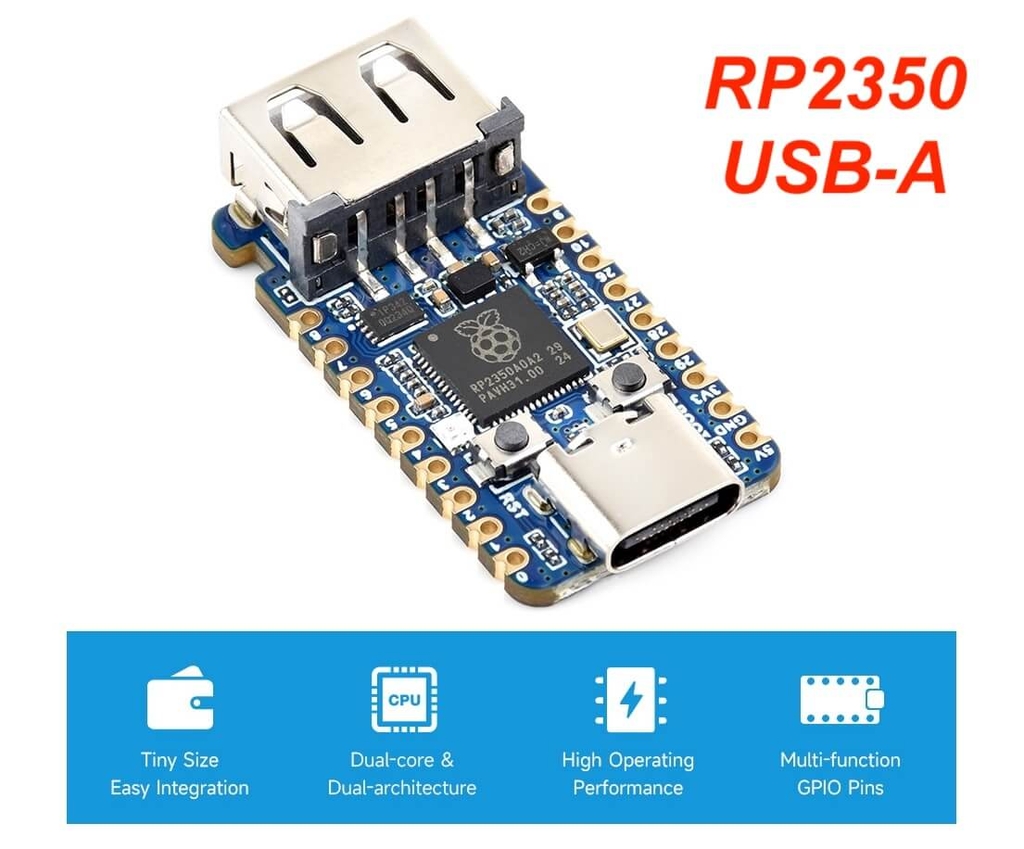
Download the firmware and follow a 50-second tutorial to set up a Waveshare RP2350-USB-A with a wired mouse or a USB wireless receiver.
What you need
- A Windows PC and a Waveshare RP2350-USB-A board.
- A USB-C cable that supports data transfer.
- A wired USB mouse, or a wireless mouse with its USB receiver.
- The
KayUSB-RP2350-USB-A-Mouse-v12.uf2file.
Keep another mouse connected directly to your PC while flashing: the board cannot relay mouse input in BOOT mode.
Set up in 4 steps.
Hold BOOT
Unplug the board’s USB-C cable and remove any mouse or receiver from its USB-A port. Press and hold the BOOT button.
Connect USB-C to your PC
Keep holding BOOT while connecting the cable. When the RP2350 drive appears in Windows File Explorer, release BOOT.
Copy the .uf2 file
Drag the downloaded firmware onto the RP2350 drive. Do not copy a .zip file. Wait for the copy to finish: the board restarts and the drive disappears. You do not need to delete any existing files.
Reconnect without BOOT
If needed, unplug and reconnect USB-C without pressing BOOT. Plug the receiver or wired mouse into USB-A. Test movement, clicks and scrolling on your desktop.
The right connections
PC → USB-C cable → RP2350 board → USB-A port → wireless mouse receiver or wired mouse.
For a wireless mouse, plug its receiver into the board. A Bluetooth-only connection does not replace a USB receiver.
Download the Kay AI launcherTroubleshooting
The RP2350 drive does not appear.
Try a USB-C data cable and another USB port on your PC. Unplug the board, hold BOOT, then reconnect it. Make sure you are pressing BOOT, not RST.
The .uf2 file is no longer visible after copying.
This is normal: the drive is the programming mode. After the firmware is copied, the board restarts and the drive disappears.
The mouse stops responding.
Connect the mouse or receiver directly to your PC first to regain control. Then check that the board is connected without BOOT. You can reinstall the firmware using the same procedure.
ATK Hub does not recognize the mouse through the board.
The firmware is a HID bridge, not a transparent USB bridge. Configure vendor-specific features with the receiver directly connected to your PC, then put it back in the board. Compatibility depends on the mouse and its settings.